
Lark / Feishu
Connect Zylos to Lark (international) or Feishu (飞书, China) for team communication.
The Lark channel connects Zylos to Lark (international) or Feishu (飞书, China mainland). It works through a webhook -- Lark sends events to your server, and Zylos processes them through the C4 Communication Bridge.
Estimated setup time: 10-15 minutes
Prerequisites
- A Lark or Feishu account with access to the developer console
- Zylos installed and running on your server
- A domain name with HTTPS pointed at your server (required for Lark webhooks). If you configured a domain during
zylos init, Caddy automatically handles SSL certificates.
Step 1: Create a Lark Application
- Go to the developer console:
- Lark: open.larksuite.com
- Feishu: open.feishu.cn
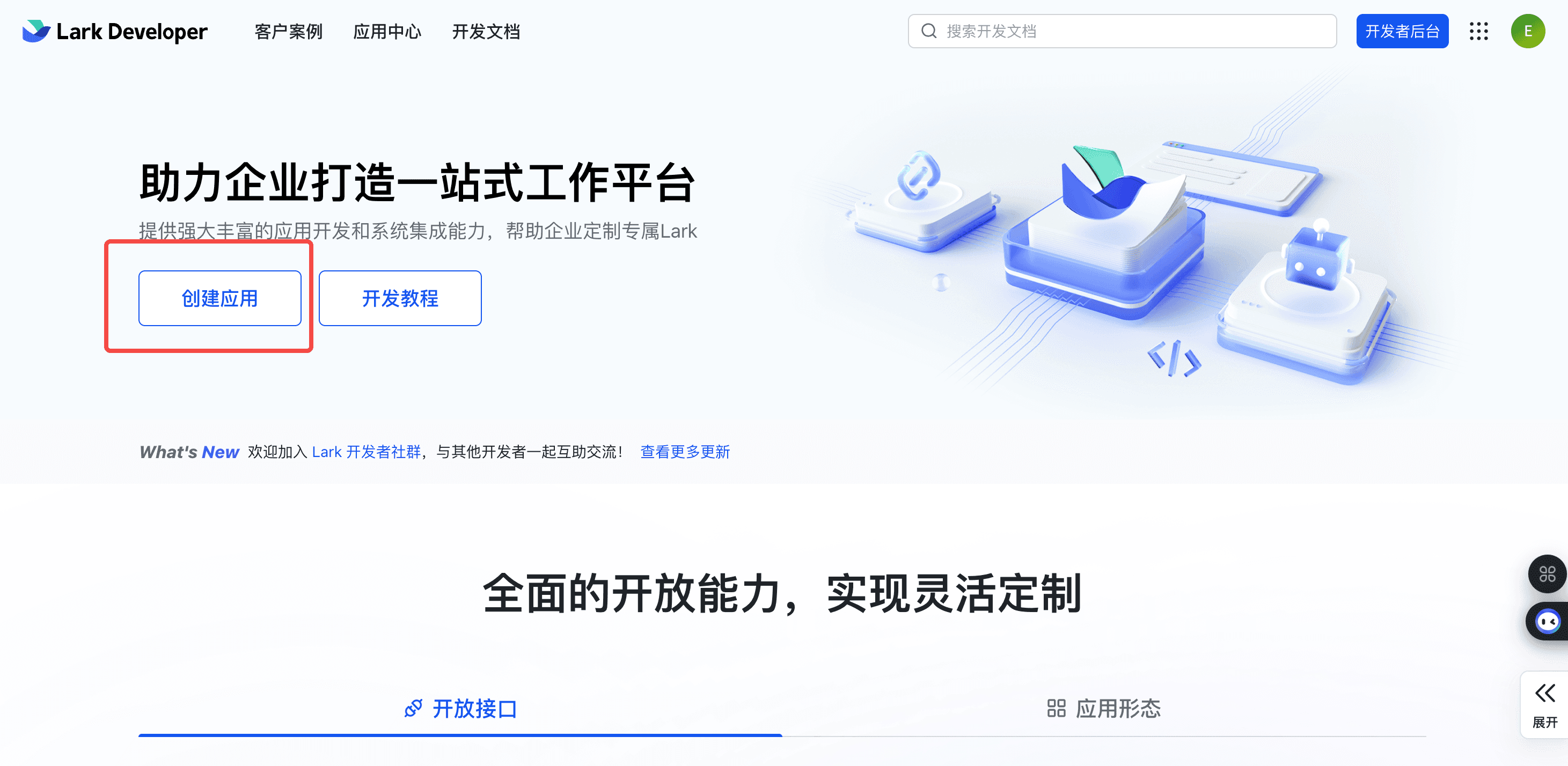
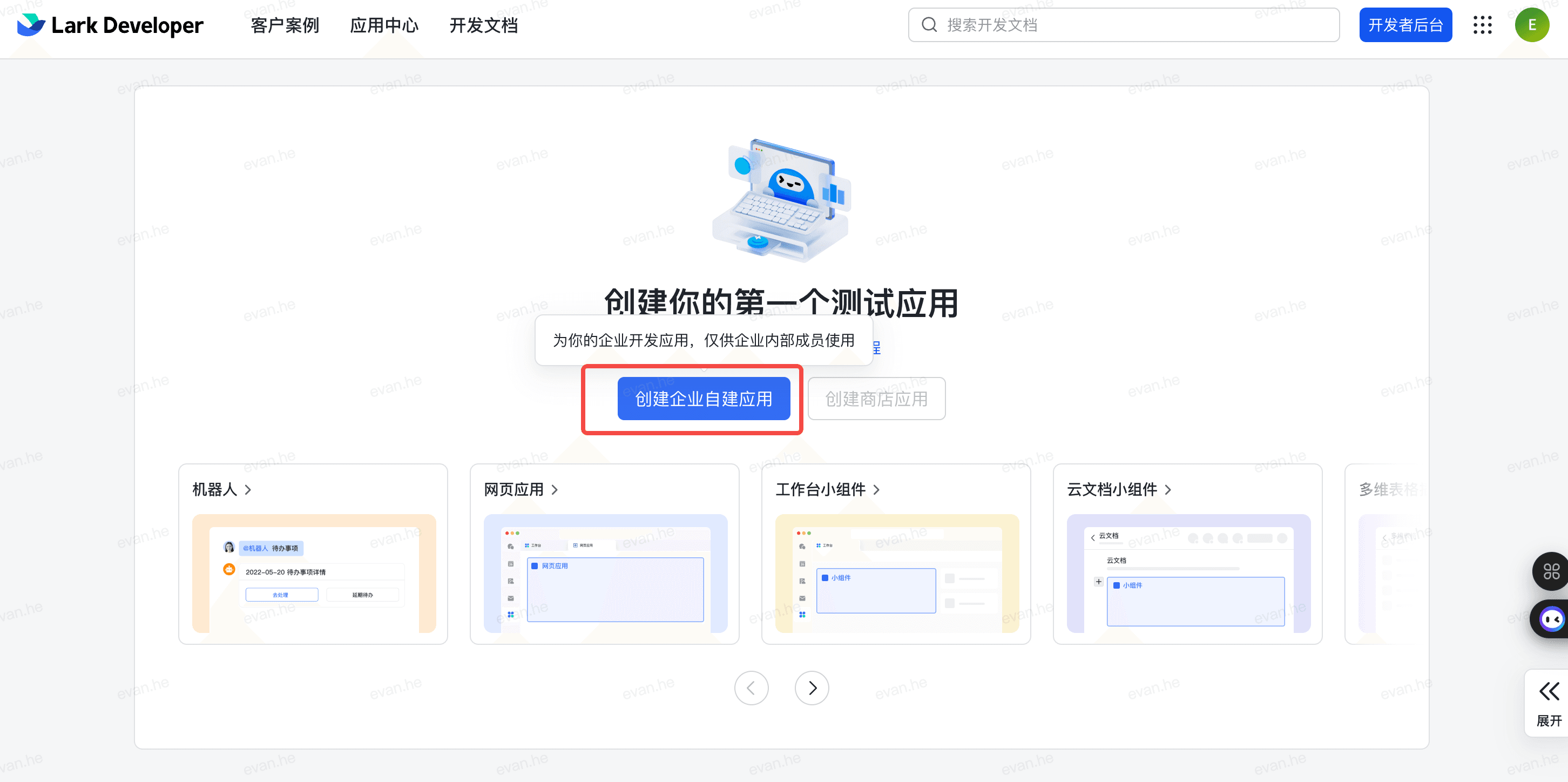
- Click Create Enterprise Self-Built Application
- Fill in the app name (e.g., "Zylos") and description
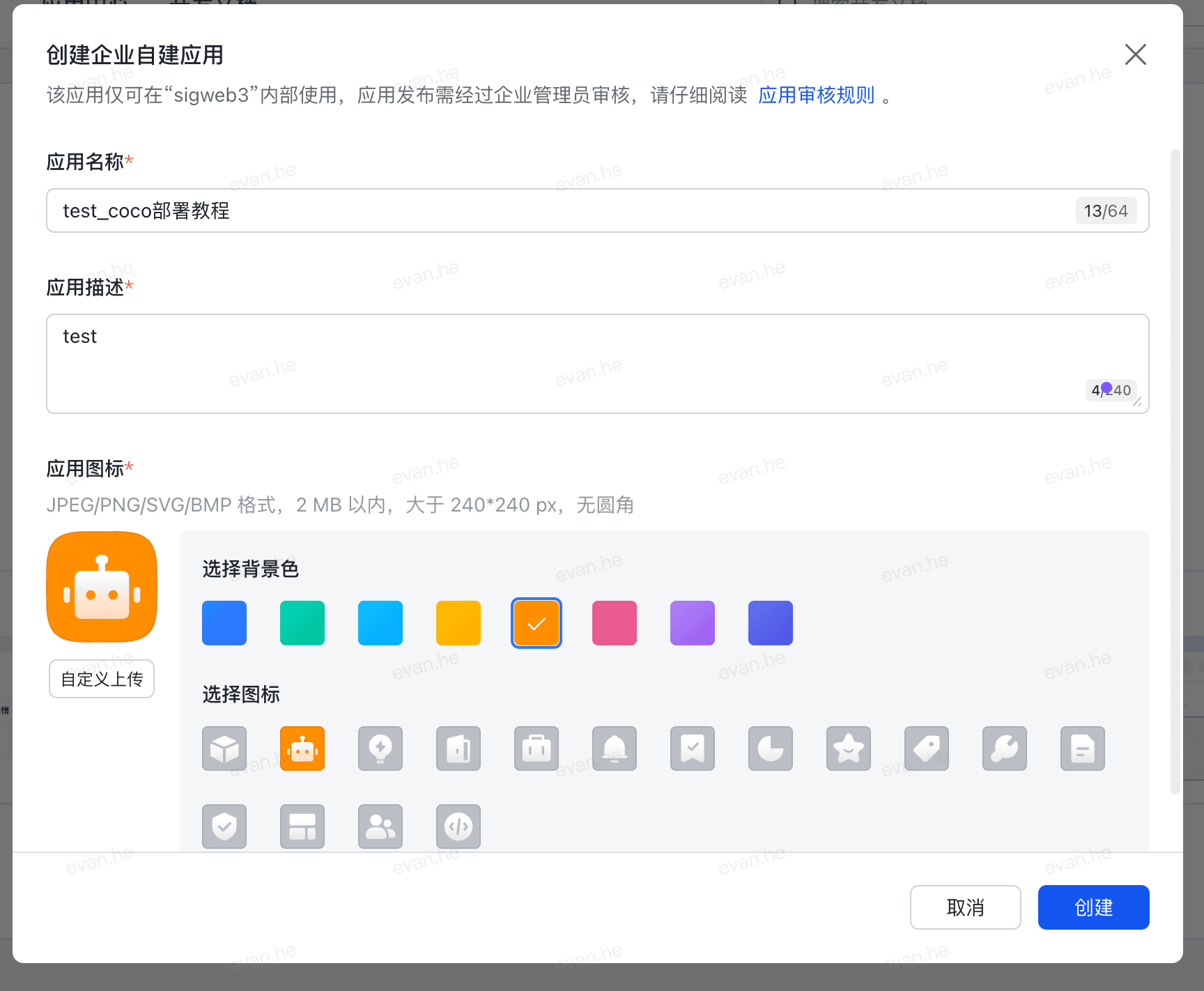
- Click Create
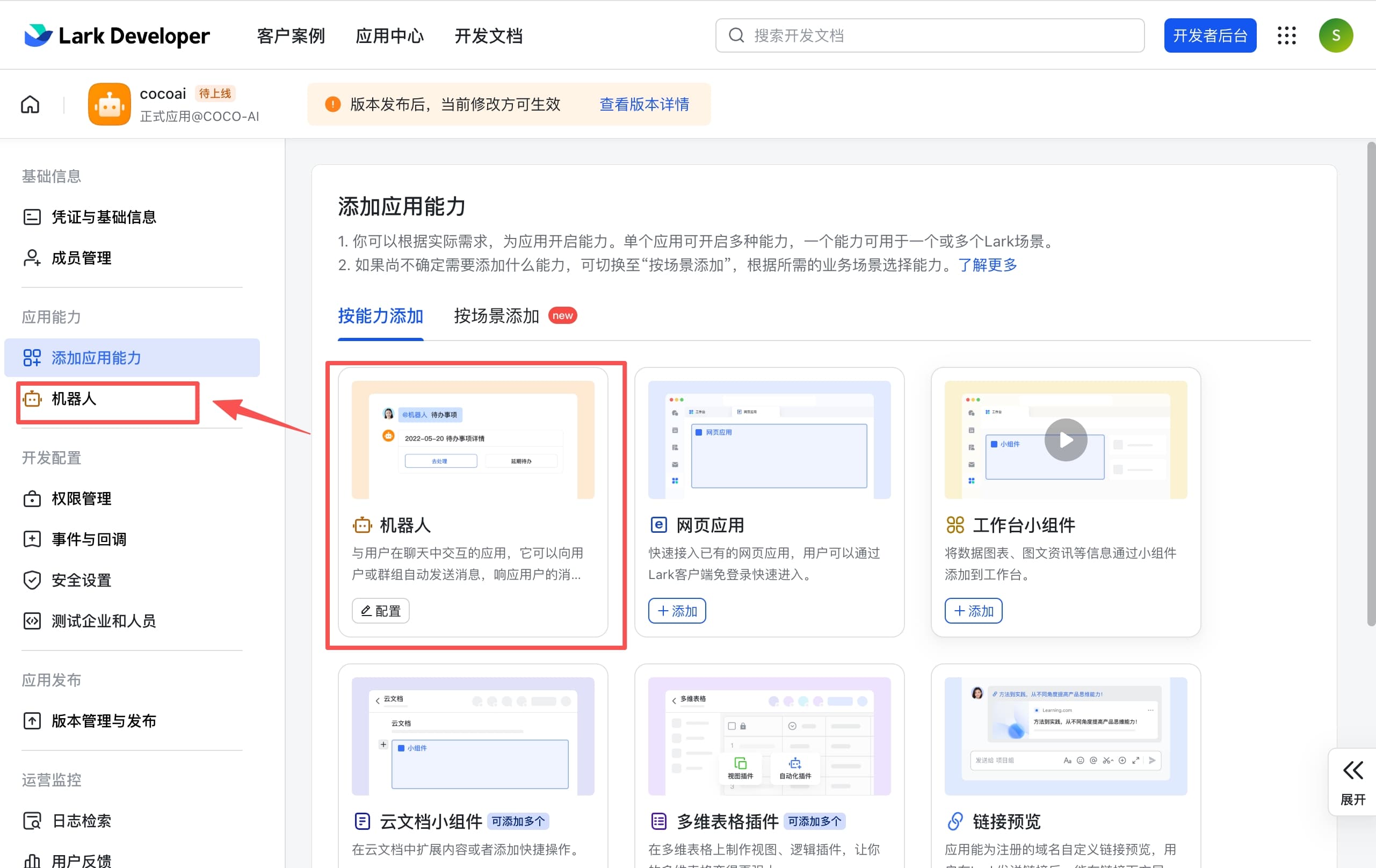
Step 2: Add Bot Capability
- In your new application, find Add Application Capability
- Click the Robot card to add bot functionality
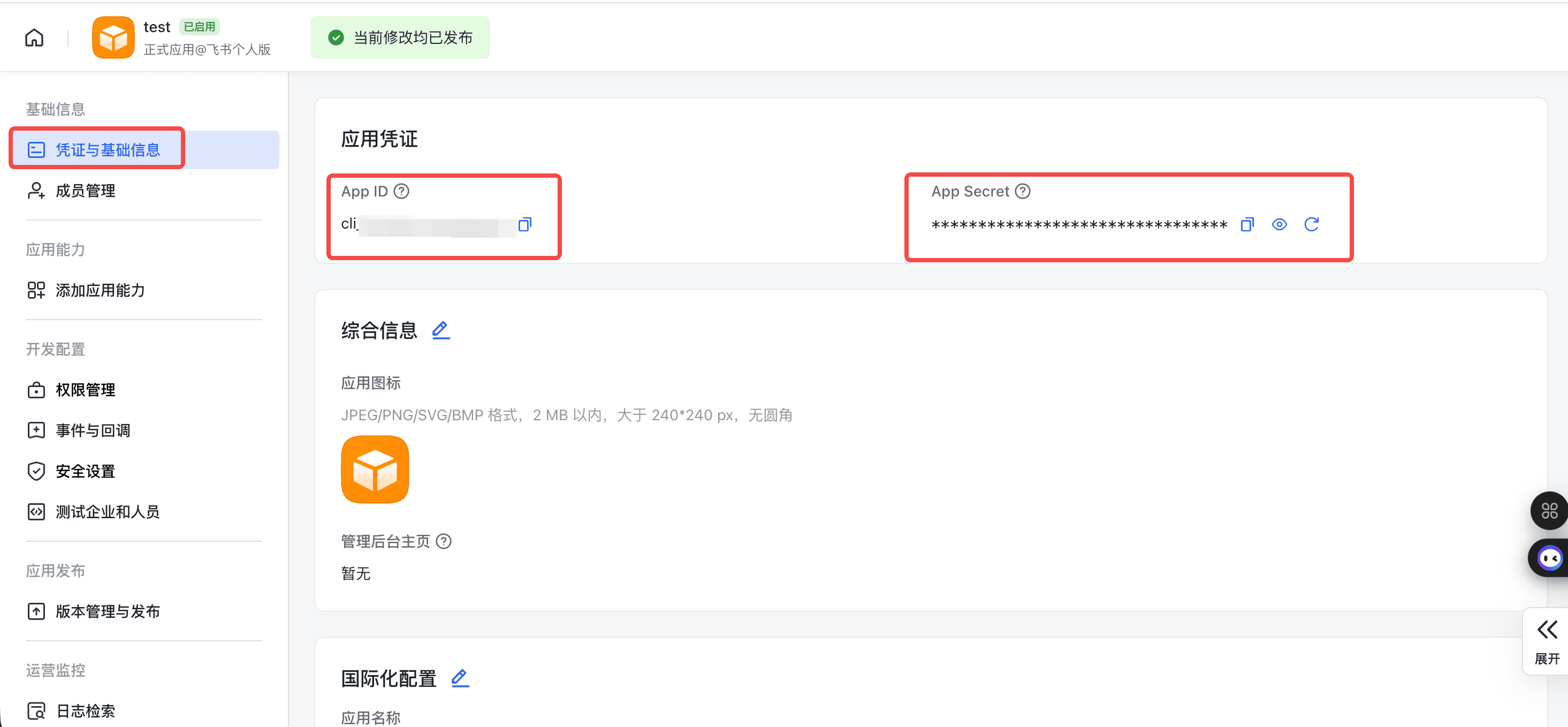
- Go to Credentials and Basic Information
- Copy your App ID and App Secret
Step 3: Configure Permissions
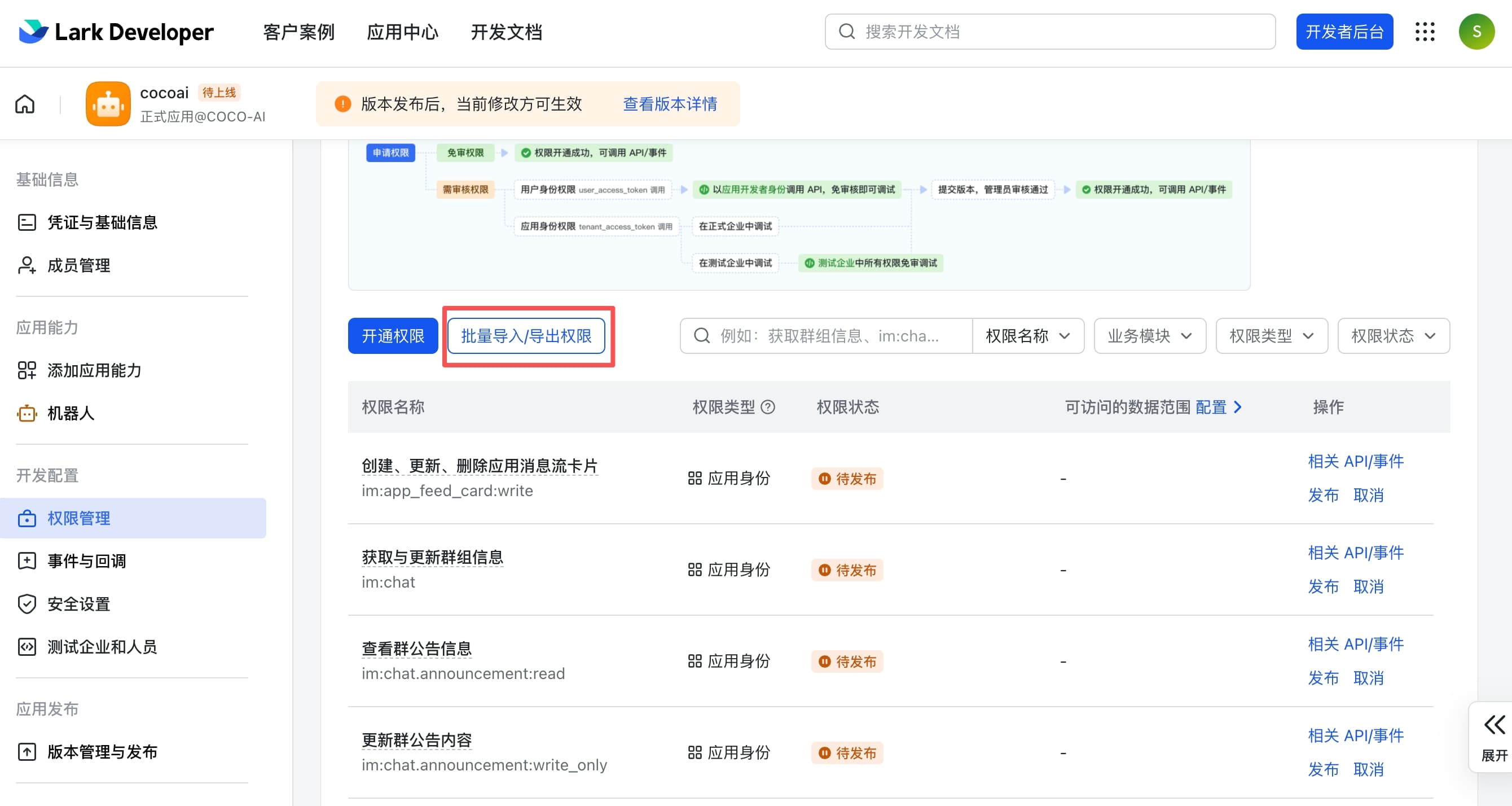
Go to Permission Management and add the following scopes. You can import them as JSON in the developer console:
Essential permissions:
im:message-- Send messagesim:message:send_as_bot-- Send as botim:message.p2p_msg:readonly-- Read DMsim:message.group_at_msg:readonly-- Read group @mentionsim:chat.members:bot_access-- Access chats the bot is inim:resource-- Upload/download files and imagescontact:user.base:readonly-- Read basic user info
See the full permissions list in the component repository for the complete JSON you can import.
Step 4: Get Verification Token
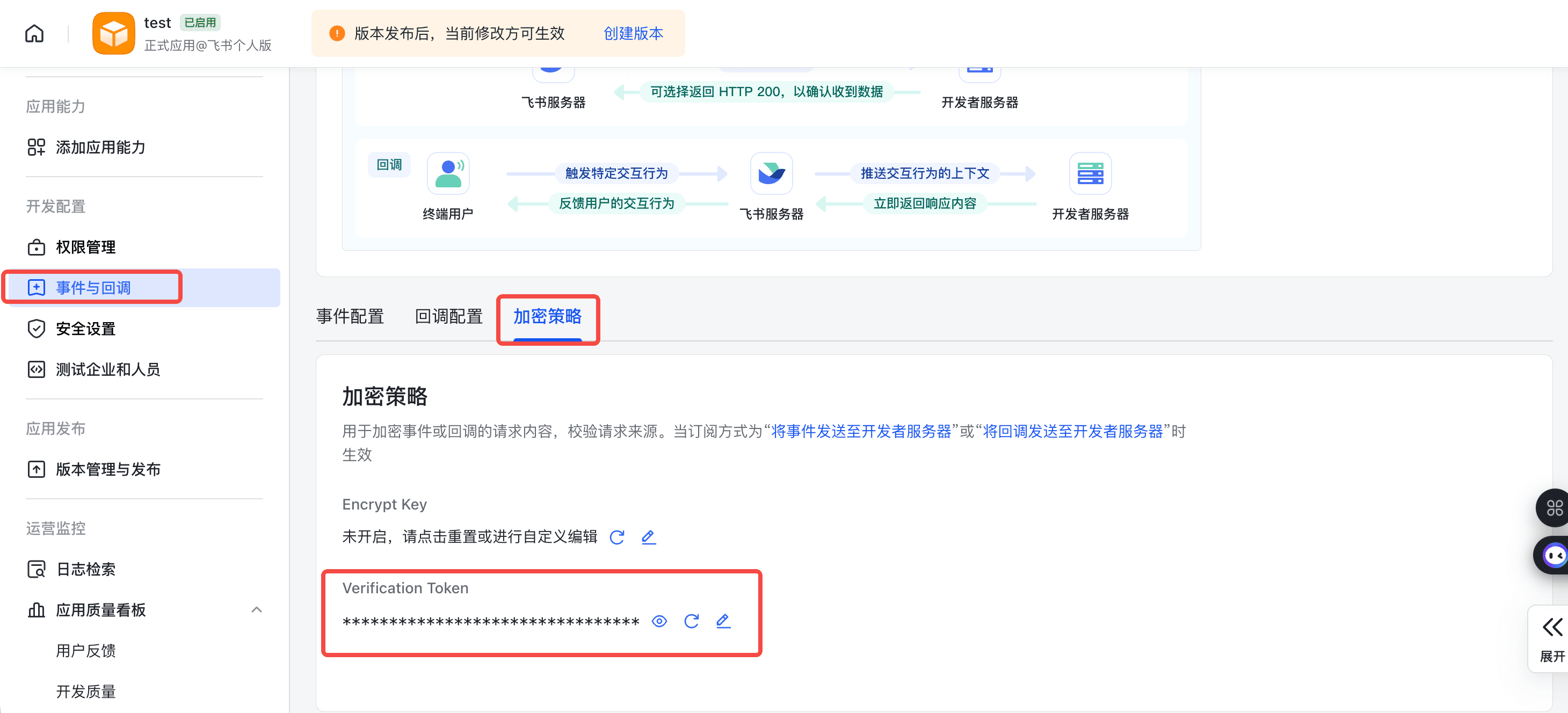
- Go to Events and Callbacks
- Click the Encryption Strategy tab
- Copy the Verification Token (required)
- Optionally copy the Encrypt Key (recommended for security)
Step 5: Install the Lark Component
In zylos shell or any connected channel, tell Zylos:
Add the Lark componentOr install manually:
zylos add larkWhen prompted, provide:
- App ID
- App Secret
- Verification Token
- Encrypt Key (optional)
Step 6: Configure Webhook URL
After installation, Zylos will tell you the webhook URL. It follows this format:
https://your-domain.com/lark/webhookGo back to the Lark developer console:
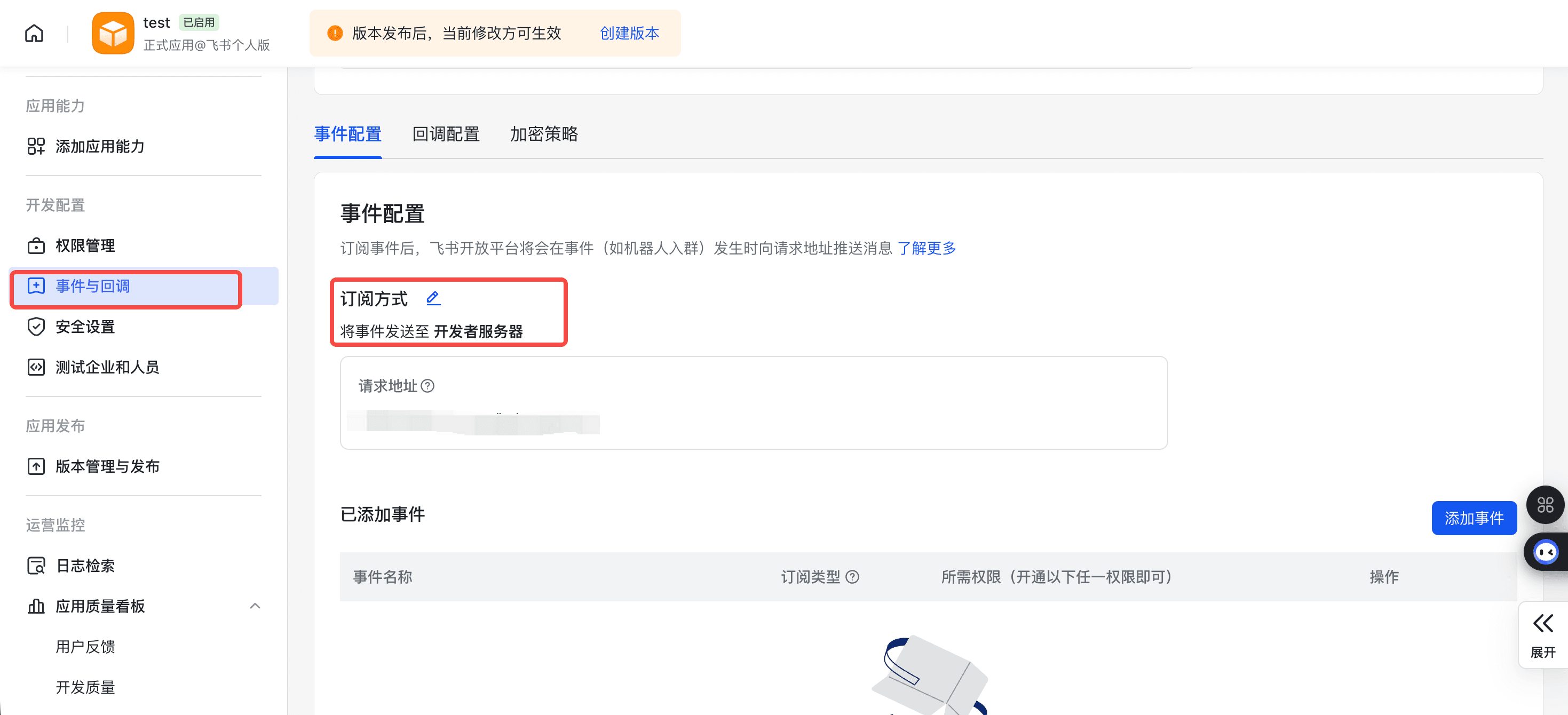
- Navigate to Events and Callbacks
- Select Send events to developer server
- Paste the webhook URL
- Subscribe to these events:
im.message.receive_v1-- Receive messagesim.chat.member.bot.added_v1-- Bot added to group
- Click Save
Step 7: Publish the Application
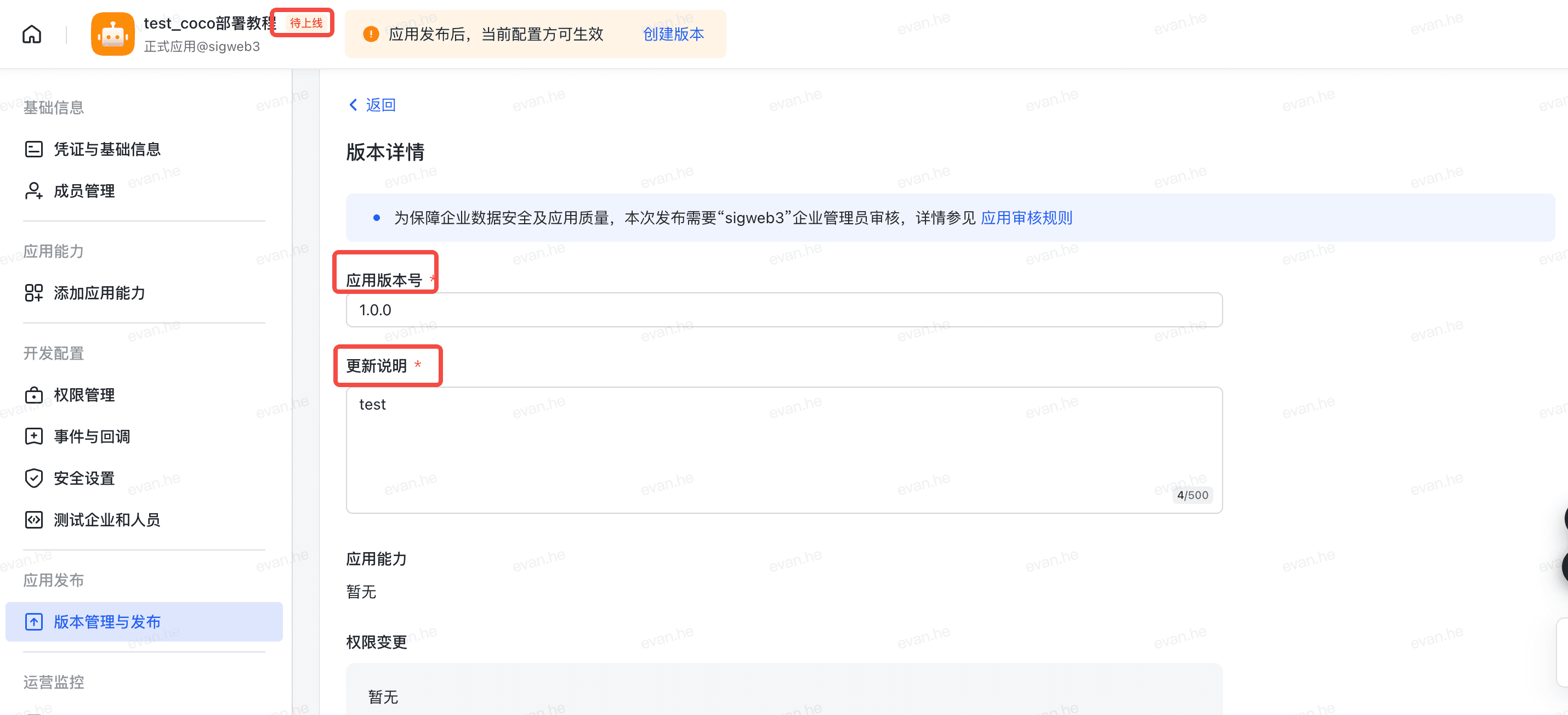
- Go to Version Management and Release
- Click Create Version
- Fill in a version number and notes
- Click Save, then Release
- Wait for admin approval (if required by your organization)
Step 8: Start Chatting
- Open your Lark/Feishu client
- Search for your bot by name
- Send a direct message -- Zylos will respond
Adding to Groups
- Open a group chat
- Go to Group Settings > Bots > Add Bot
- Search for your application name and add it
- @mention the bot to interact with it in the group
Access Control
Similar to Telegram, you can configure who can interact with the bot through Zylos or the admin CLI.
Through Zylos:
Set the Lark DM policy to allowlist
Add <lark_user_id> to the Lark allowlist
Through the admin CLI:
# Set DM policy
zylos-lark set-dm-policy allowlist

# Allow a specific user
zylos-lark add-dm-allow <lark_user_id>

# Group policy
zylos-lark set-group-policy allowlist
See Extending Zylos for how to locate and run component admin CLIs.
Lark vs Feishu
The component works with both platforms. The only differences are:
- Developer console URL --
open.larksuite.comvsopen.feishu.cn - API endpoints -- Handled automatically by the component
- Permission names -- Identical between platforms
Troubleshooting
Webhook verification fails
- Ensure your domain has valid HTTPS (Lark requires it)
- Check that the webhook URL is reachable from the internet
- Verify the Verification Token matches between Lark console and your config
Bot doesn't respond in groups
- Make sure the bot is added to the group
- Check that you're @mentioning the bot
- Verify
im.message.receive_v1is subscribed in Events and Callbacks
Messages not arriving
- Check the service:
pm2 status zylos-lark - Check logs:
pm2 logs zylos-lark --lines 50 - Verify the application is published and approved
Configuration Reference
| Setting | Location | Description |
|---|---|---|
LARK_APP_ID | ~/zylos/.env | App ID from developer console |
LARK_APP_SECRET | ~/zylos/.env | App Secret from developer console |
verification_token | config.json | Webhook verification token |
encrypt_key | config.json | Optional encryption key |
webhook_port | config.json | Internal webhook listener port (default: 3457) |
| Config file | ~/zylos/components/lark/config.json | Full runtime configuration |
| PM2 service | zylos-lark | Service name for pm2 commands |
The Lark component runs a local webhook listener on port 3457. Caddy reverse-proxies the /lark/webhook path to this internal port, so you don't need to expose it directly.